Potentially useful
- Larger working canvas.
- Cleaner-looking contours.
- More usable portfolio and display files.
- Reduced visibility of selected compression damage.
ANIME & ILLUSTRATION WORKFLOW
Create a larger working copy of anime artwork, character illustrations, digital paintings and scanned art with Upscayl AI.
Choose the free Desktop application for local processing or use Upscayl Cloud from a browser. Compare suitable AI models, inspect important details and export the result for a larger screen, print layout, portfolio or creative project.
AI upscaling can add pixels and improve perceived definition. It cannot reconstruct every missing line or guarantee that a small image will match the artist’s original intent.

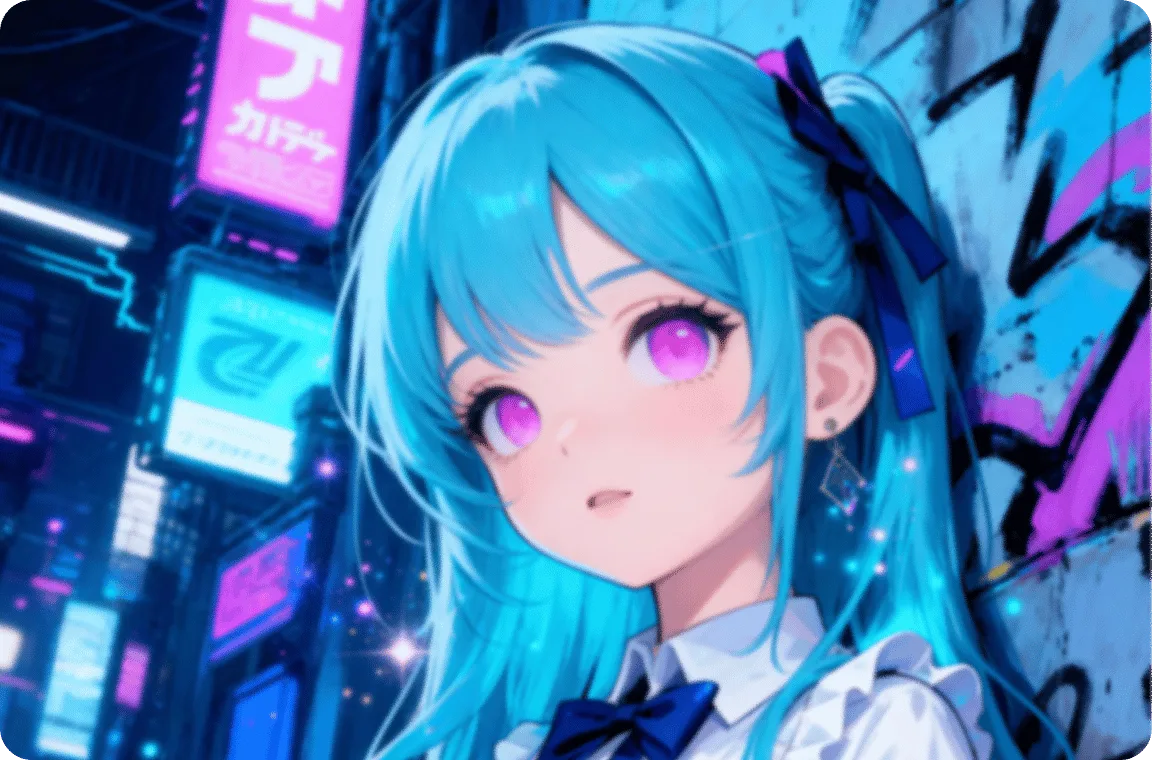
PROTECT THE ORIGINAL STYLE
Illustrations are not photographs. A model that works well on camera noise, skin or foliage may treat intentional linework as a defect, sharpen soft shading too aggressively, add texture to a flat colour or change a character’s eyes and mouth.
A useful anime image upscaler should respect clean outlines, intentional line weight, cel-shaded shadows, flat colour regions, smooth gradients, character proportions, facial expressions, brush texture, pattern consistency and negative space.
No single setting suits every style. Start with the image type and intended use, then judge the actual output—not the model name.
Compare Illustration Workflows
PRACTICAL EXPECTATIONS
AI upscaling may create larger pixel dimensions, more defined edges, cleaner separation between some shapes, improved visibility of selected details, a more usable source for layout or display, reduced appearance of some compression artifacts and better presentation on high-resolution screens.
A clean 1,000-pixel illustration usually gives the model more reliable information than a heavily compressed 200-pixel thumbnail.
Keep the original file and treat every upscale as a new derivative that requires review.
START WITH THE IMAGE TYPE
Inspect eyes, eyelashes, eyebrows, nose and mouth lines, hair strands, fingers, clothing seams, accessories, screen tones, speech balloons, lettering and high-contrast contours. A sharper result can still change a character’s expression.
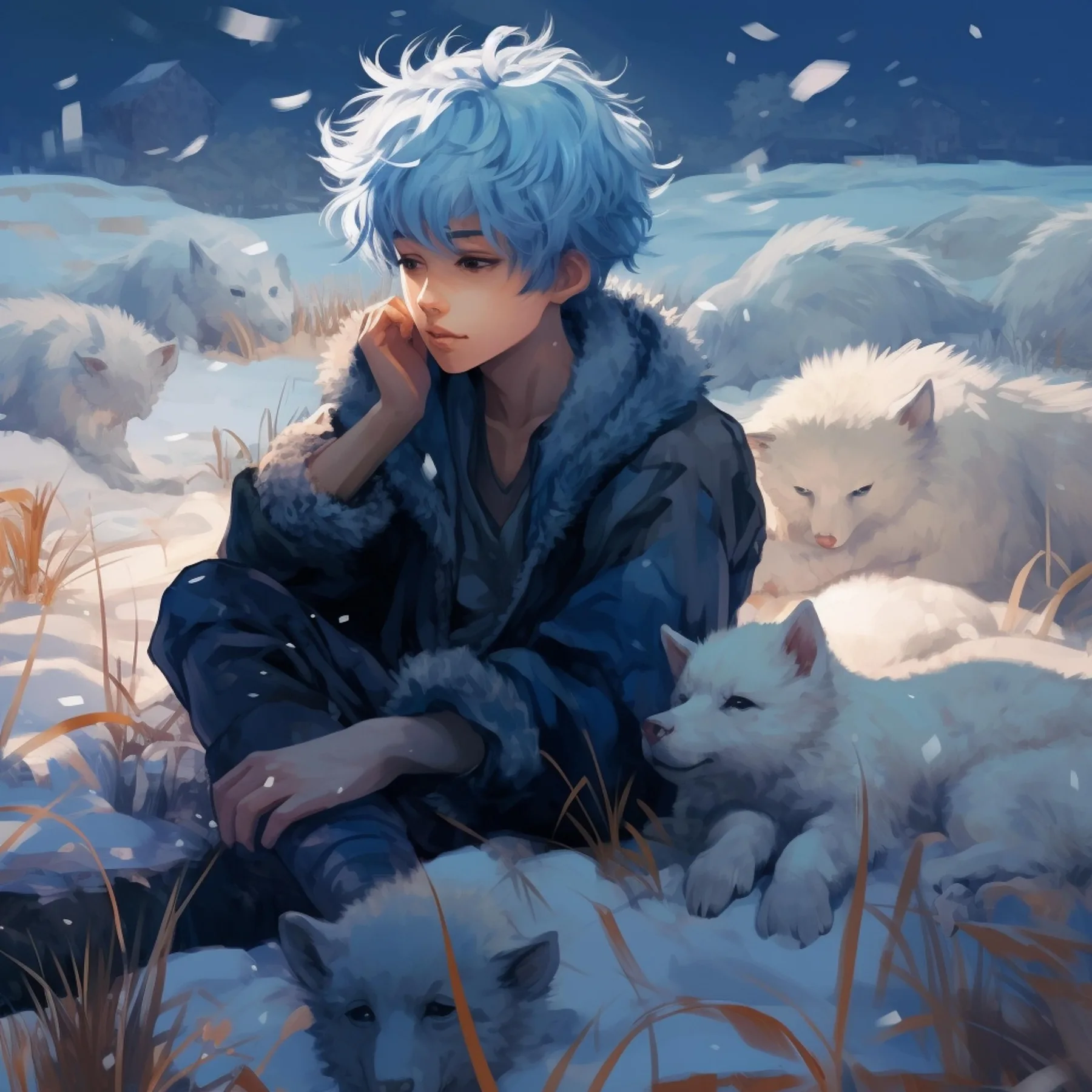
Look for repeated brush texture, over-sharpened strokes, gradient banding, plastic surfaces, changed edge softness, added noise and altered facial features. Maximum sharpness is not always the correct creative result.
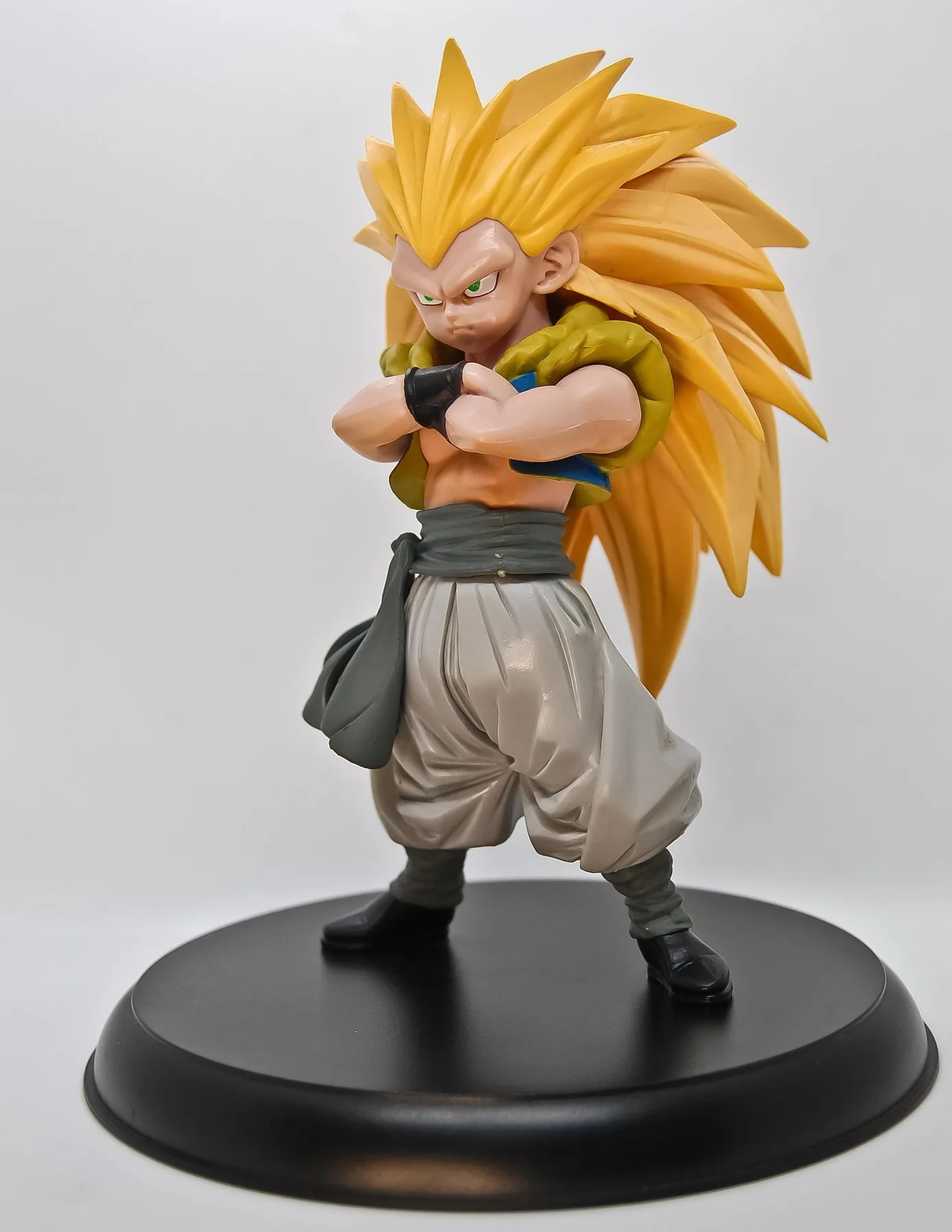
Check edge smoothness, outline width, corners, small icons, repeated shapes, colour boundaries, embedded text and brand elements. Export the original vector source directly when it exists.
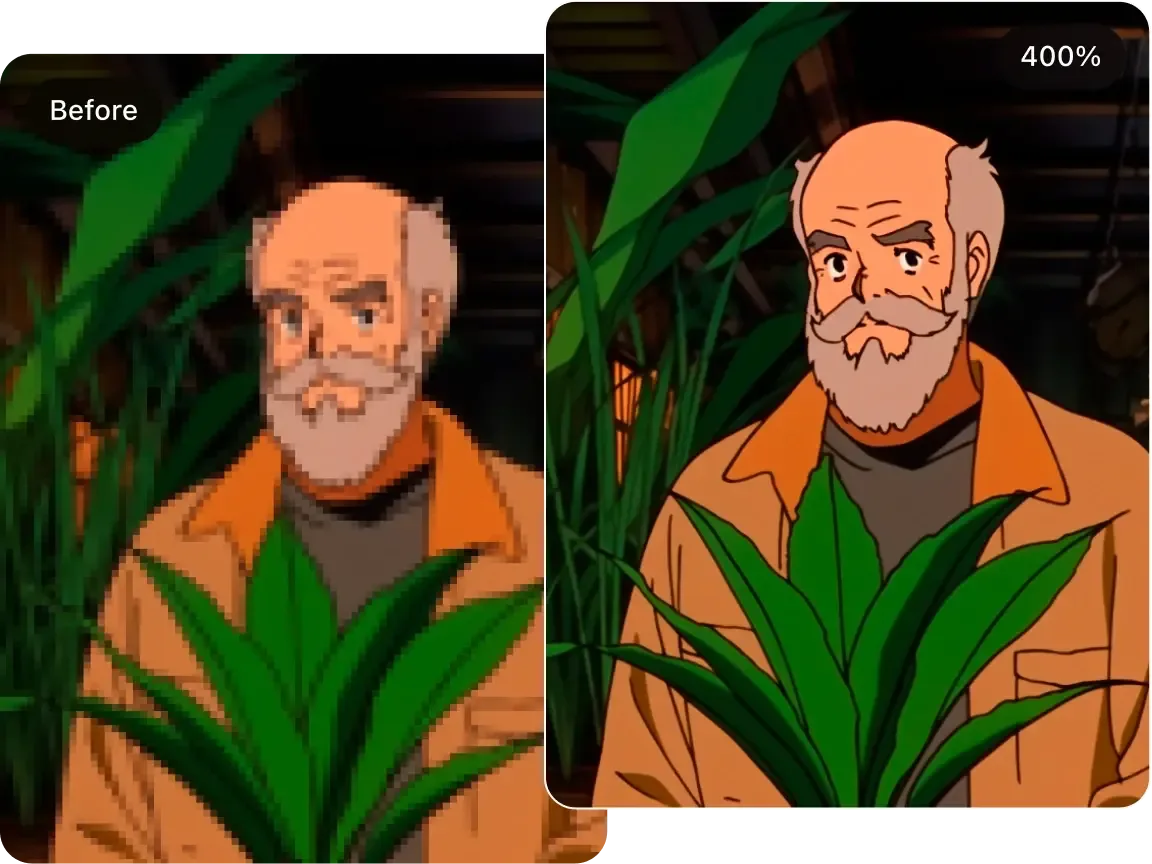
Nearest-neighbour scaling is usually the faithful first choice. Use AI only when you intentionally want a reinterpreted, smoother derivative instead of exact pixel preservation.
Decide whether paper texture, pencil grain, paint granulation, ink variation and soft washes should remain. Remove dust, scanning shadows and unwanted colour casts before upscaling when they are not part of the art.
DESKTOP OR CLOUD
Free, open-source software for Windows, macOS and Linux with local processing, several models, compatible custom-model support, output controls and batch processing.
Browser-based processing without compatible local graphics hardware, with current Cloud tools for editing, generation, face enhancement and additional formats.
| Requirement | Consider Desktop | Consider Cloud |
|---|---|---|
| Local processing | Yes | No |
| Browser access | No | Yes |
| Compatible local hardware | Required | Not required |
| Open-source application | Yes | No |
| Batch workflow | Available | Check current plan |
| Custom models | Compatible Desktop models | Check current availability |
| Sensitive artwork | Often more controlled | Review upload and retention policies |
| Mobile or tablet | No | Browser-dependent |
SOURCE → TEST → REVIEW → EXPORT
Use the original layered project, full-resolution lossless export or highest-quality JPEG. Avoid social-media downloads, screenshots and thumbnails when a better source exists.
Duplicate the source and use a separate output folder. Use clear filenames that record the model, scale and date.
Identify eyes, hair, hands, thin outlines, gradients, repeating patterns, fine accessories, text and signatures before processing.
Test available models on the same image and choose by visible evidence rather than naming alone.
Use the smallest scale that satisfies the final use. An unnecessary enlargement can make artifacts more noticeable.
For a collection, begin with the most difficult representative image before processing the whole folder.
Inspect the source, selected output, alternative model and final-size preview at matching display sizes.
Confirm dimensions, transparency, colour appearance and format in the software used for final artwork.
Use a synchronized comparison and inspect the same face, hair, clothing and accessory regions.

CHOOSE BY OUTPUT
A model is useful only when its result fits the artwork.
Reject doubled lines, jagged curves and invented sketch texture.
Reject results that make every surface equally sharp.
Inspect regular dot and line patterns for moiré or irregular texture.
Avoid repeatedly processing the result in an attempt to remove every artifact.

QUALITY CONTROL
Look for broken outlines, doubled edges, uneven thickness, halos, angular curves and lines merging into nearby shapes.
Compare eye shape, direction, eyelashes, mouth, nose marks, pupils, highlights, hairline and expression. Small changes can alter the character.
Check for texture inside flat fills, banding, colour bleeding, uneven cel shading, false highlights and changed shadow boundaries.
Review fingers, ears and accessories. Verify every dialogue line, caption, symbol, logo, signature and watermark. Confirm alpha edges, semi-transparent effects and a suitable output format.
REAL CREATIVE USES
Prepare larger working copies for wallpapers, digital displays, portfolio pages and high-density screens.
Create additional pixels before layout, then check effective PPI, colour, bleed, sharpening and printer requirements.
Enlarge older work when the original high-resolution export is unavailable and label reprocessed work where relevant.
Prepare artwork for banners, booth displays, portfolio books and signage according to viewing distance.
Create working mockups for prints, cards, stickers or apparel; use original layered or vector art for final manufacturing where possible.
Create a larger master derivative before platform-specific crops and protect text and character features near boundaries.
Prepare concept art, backgrounds, promotional images or legacy assets and review repeated assets consistently.
Create larger viewing copies while keeping the original archive unchanged.
Enlarge generated illustrations for editing or presentation, then review hands, eyes, patterns, lettering and repeated detail.
Explore the broader AI art upscaling workflow or prepare artwork for printing.
KNOW WHEN TO STOP
An illustrator can often produce a more faithful result by reopening the original project, enlarging the canvas, redrawing critical lines and exporting again.
FIRST-HAND EVIDENCE
Use original or properly licensed images and show mixed or unsuccessful results as well as strong examples.
| Test | Focus | Pass criteria | Possible failure |
|---|---|---|---|
| Anime portrait | Eyes, hair, outlines | Expression and contours remain stable | Altered eyes or doubled hair lines |
| Manga panel | Ink and screen tones | Lines and patterns remain clean | Moiré, grey contamination, broken text |
| Digital painting | Brush texture and gradients | Texture remains natural | Plastic surfaces or banding |
| Flat illustration | Curves and colour fills | Boundaries remain stable | Halos or invented texture |
RIGHTS & PRIVACY
Use artwork you created or are authorised to modify. Confirm that the artist, copyright owner, client and applicable licence permit modification and intended use. Upscaling does not transfer copyright or remove the rights of the original creator.
Desktop processing may suit private commissions and unreleased work because processing occurs locally. Cloud processing requires an upload. Review the current Privacy Policy and Terms before processing confidential or commercial material.
WHY UPSCAYL
Upscayl offers free open-source Desktop software, local processing on compatible systems, Windows, macOS and Linux support, several model choices, compatible custom models, batch processing, browser-based Cloud access and connected editing and generation tools.
Choose Desktop for compatible local hardware, sensitive files and repeatable batch workflows.
Choose Cloud when browser access or processing without suitable local graphics hardware is more practical.
Test models, inspect the result and approve only the output that respects the style. Upscayl should support the artist’s decisions—not replace them.
PRACTICAL ANSWERS
An anime image upscaler creates a higher-resolution version of anime or illustration artwork. Every result still needs review for altered lines, colours, faces, patterns and text.
Upscayl can enlarge raster images using several AI model options. Suitability depends on the source, model, scale and intended use.
Upscayl Desktop is presented as free and open source. Check current Cloud plans and product details before processing a larger project.
Upscayl Cloud provides browser-based processing. Review the current privacy policy and confirm that you have permission to process the artwork.
Model names and availability can change. Test current models on actual linework, eyes, hair, gradients and text instead of relying on a model name alone.
It may preserve or improve some lines, but it can also thicken, break, duplicate or reshape them. Inspect important contours at 100%.
Yes, but ink, screen tones, small lettering and fine lines require careful review for moiré, grey contamination and changed text.
You can create an output with enough pixels for a 4K canvas when the source dimensions and selected scale allow it. 4K describes dimensions, not guaranteed visual quality.
It may add pixels for a print layout, but effective resolution, colour preparation, bleed, paper and printer requirements must be checked separately.
Use nearest-neighbour scaling when exact pixel preservation matters. AI is appropriate only when you intentionally want a reinterpreted or smoothed derivative.
It may improve perceived definition in some images, but it cannot reliably reconstruct details lost through severe blur, tiny dimensions or heavy compression.
Configure the workflow to create a separate output, preserve the original and use a different output folder or filename.
Only when you have the necessary rights and the applicable licence permits the intended use and modification. Upscaling does not create commercial rights.
Desktop may suit local processing on compatible hardware. Cloud may suit browser access or devices without suitable local graphics hardware.
Review the current privacy policy and retention practices before uploading confidential or unpublished work.
A LARGER CANVAS, CAREFULLY REVIEWED
Create a larger version while keeping the original safely preserved. Choose Desktop for a free local workflow or Cloud when browser access is more practical. Test the models, inspect lines and character details, and approve the result at its intended display or print size.