AI ART UPSCALING

Upscale AI Art and Digital Illustrations

Create a larger version of your artwork while protecting the visual choices that make it yours.

Upscayl helps artists upscale AI art, enlarge digital illustrations, and prepare selected work for portfolios, high-resolution displays, print proofs, merchandise, wallpapers, and design layouts.

Choose Upscayl Desktop for free local processing or Upscayl Cloud for a browser-based creative workflow.

AI upscaling creates additional pixels. Review every result for altered lines, texture, typography, anatomy, patterns, and signatures.

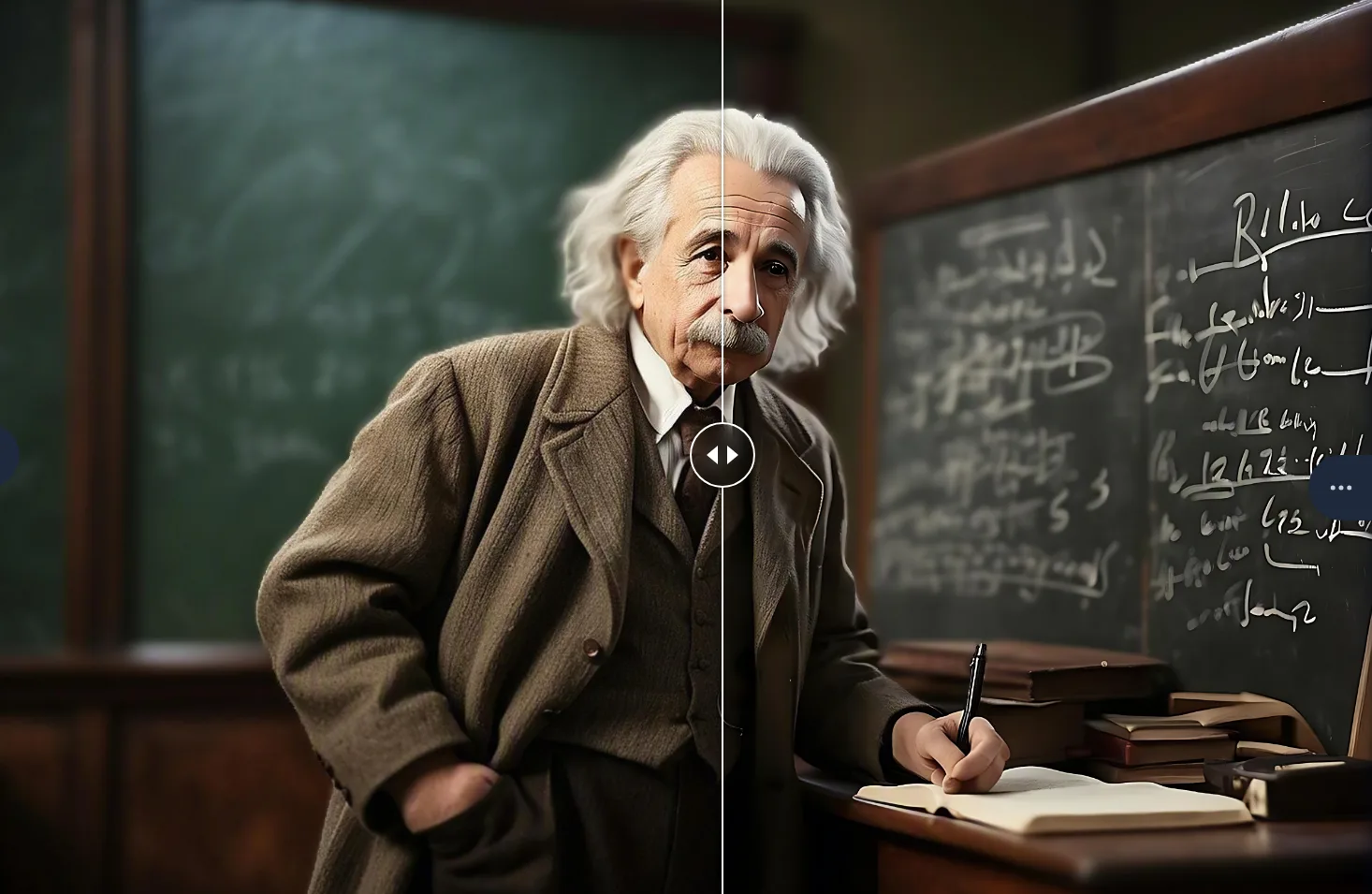
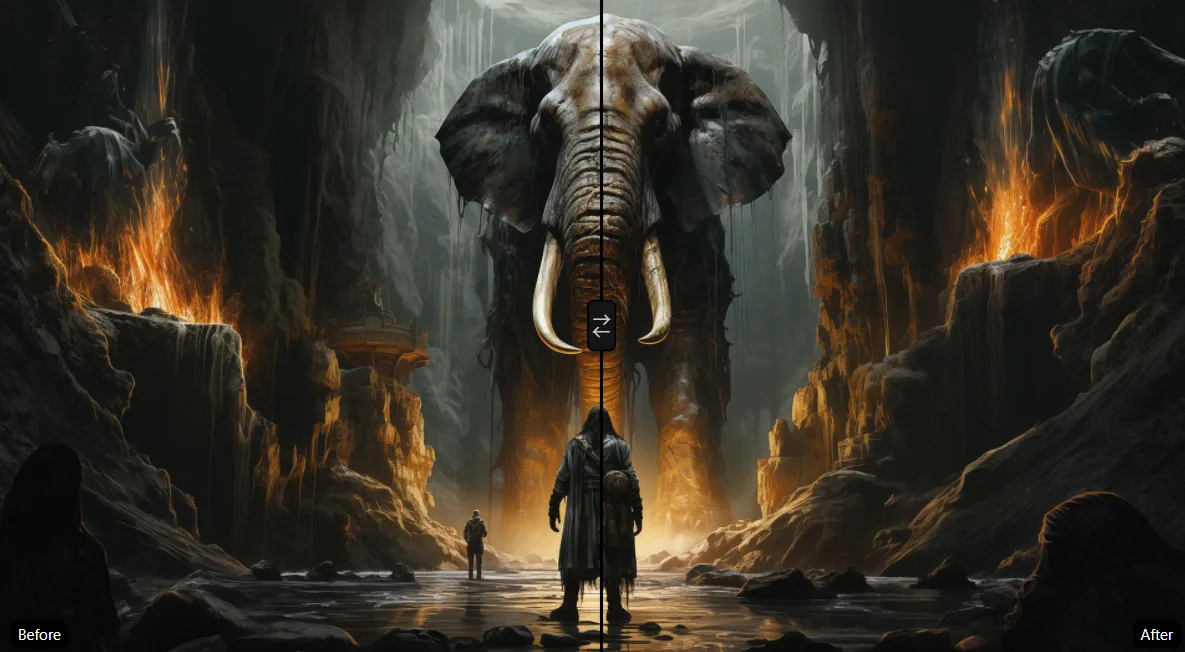
AI artwork illustration after reviewed Upscayl output
AI artwork illustration before upscaling
BeforeAfter
Drag the divider to compare the original illustration with a reviewed high-resolution output.

PRESERVE THE STYLE

Enlarge Digital Art Without Losing Its Visual Character

A small image can look polished on a generation screen but appear soft when used as a desktop wallpaper, portfolio hero image, print, poster, book cover, social-media campaign, merchandise design, large presentation visual, game or animation background, or client-delivery asset.

Upscayl can create a larger raster image when the current pixel dimensions are not enough for the final placement. The goal is not simply to make the file bigger. A useful result should preserve intentional line work, shape and silhouette, color relationships, texture, gradients, lighting, character design, typography areas, surface detail, and the original composition.

Enlarge Digital Art
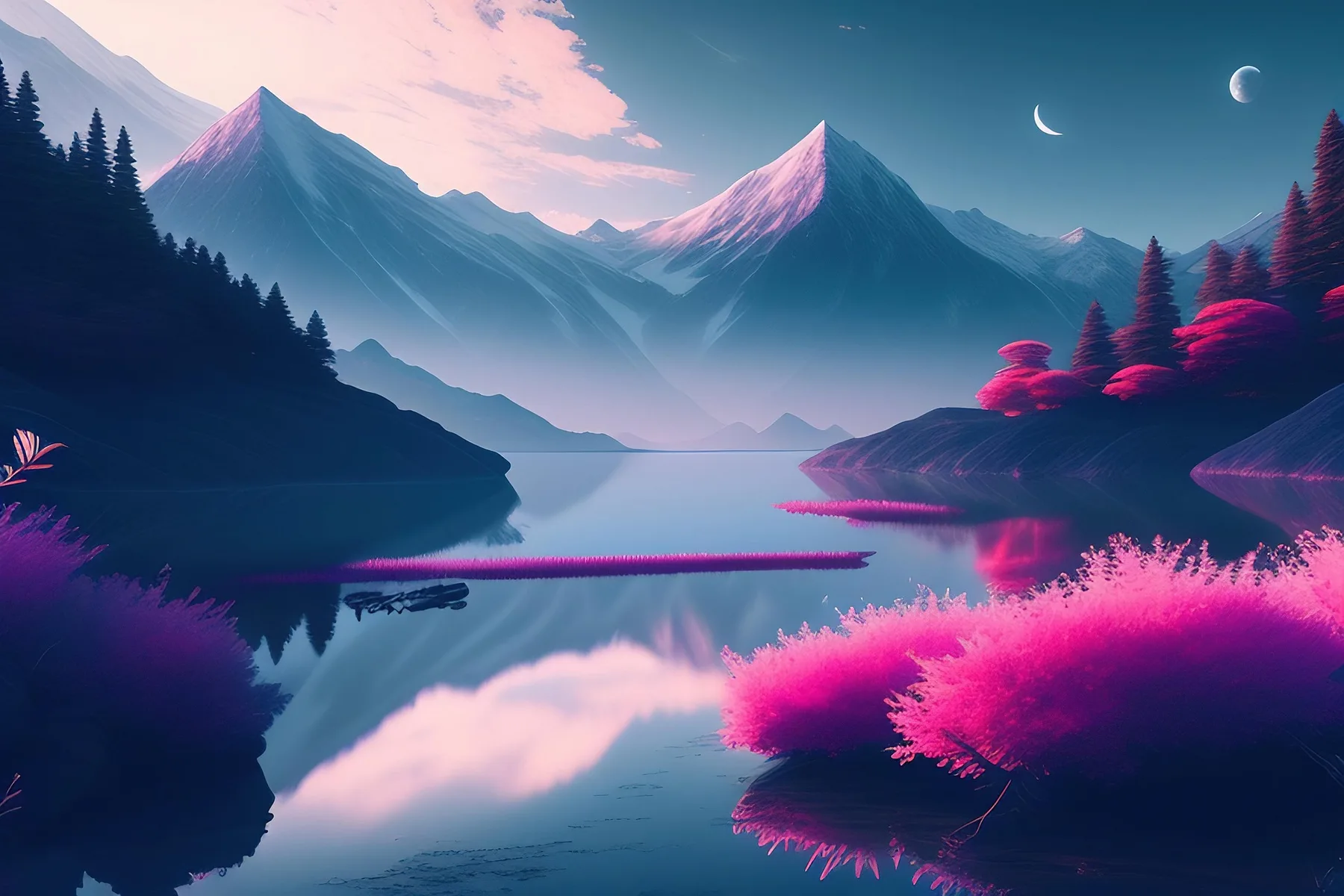
Painterly fantasy landscape prepared for larger artwork placement

SOURCE CHECK

Check Whether the Artwork Is Raster or Vector First

AI upscaling is primarily relevant to raster images. Use the original editable or vector source whenever possible. Use AI upscaling when the best available source is a raster image that does not contain enough pixels for its next use.

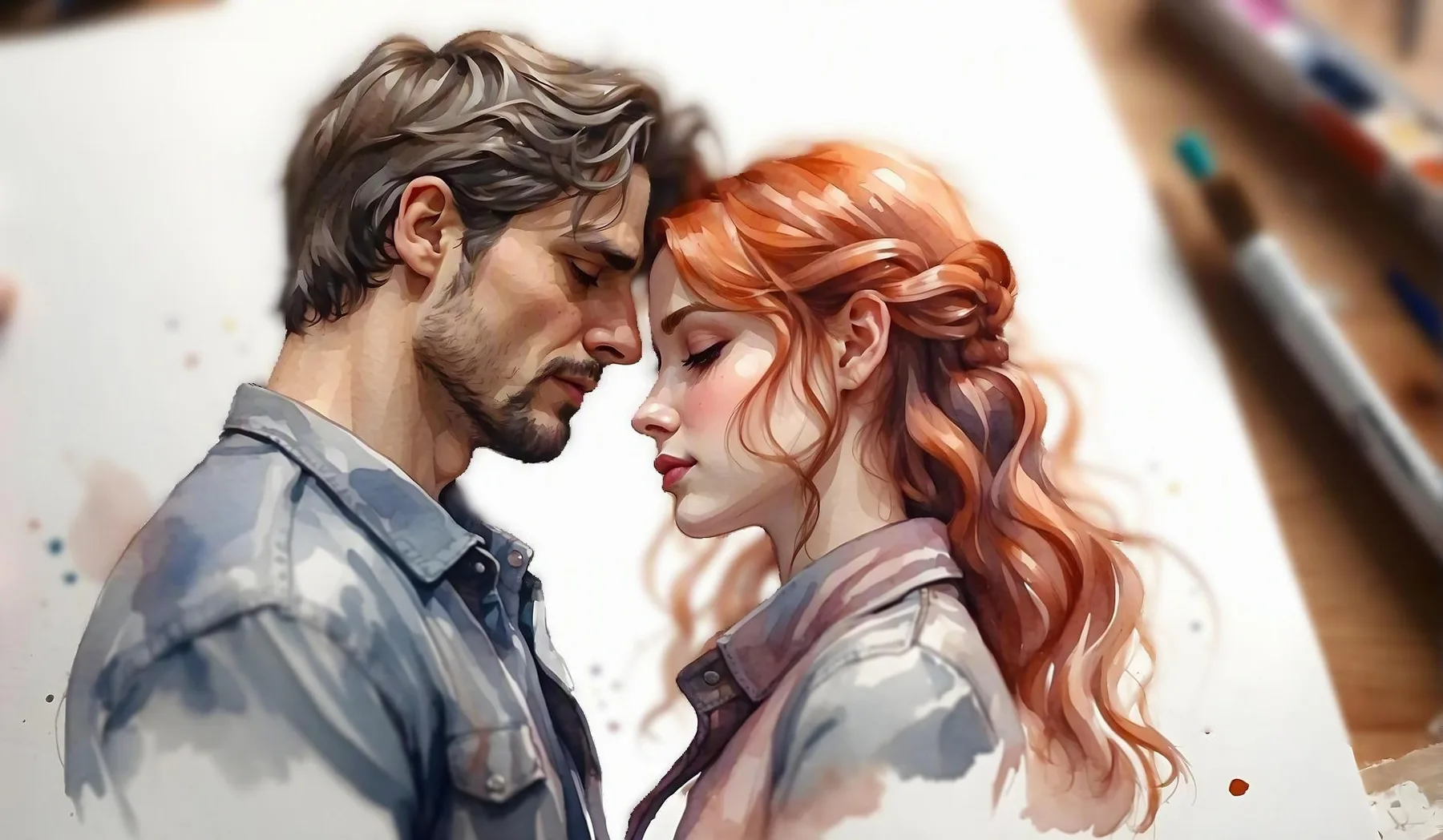
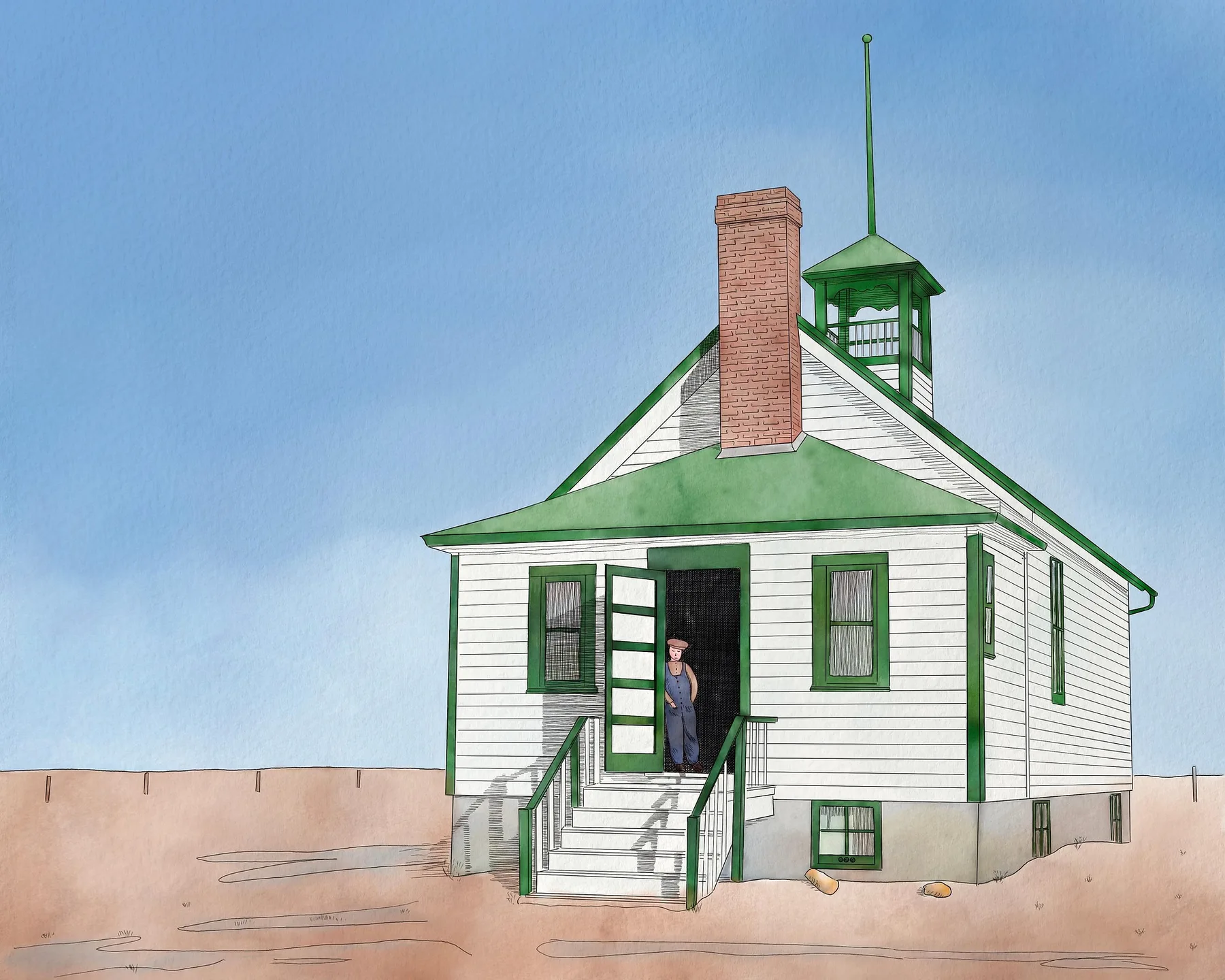
Raster watercolor-style digital illustration before enlargement

Raster artwork

Raster images are built from pixels. Common raster formats include JPEG, PNG, WebP, and TIFF. Raster artwork may benefit from upscaling when its dimensions are too small, the only available export is low resolution, a generated image needs a larger final canvas, a crop must be enlarged, or an old illustration file must fit a modern layout.
Line illustration representing vector-style paths and clean edges

Vector artwork

Vector artwork is built from paths, points, fills, and mathematical shapes. Common vector formats include SVG, AI, EPS, and some PDF files. If the original vector file is available, export it directly at the required dimensions because that usually preserves lines and shapes more accurately.

WHAT UPSCALING CAN AND CANNOT DO

What Does AI Art Upscaling Do?

AI upscaling increases the image’s pixel dimensions and generates a larger interpretation of the existing visual. Depending on the artwork and model, it may make edges appear cleaner, reduce the distracting appearance of low resolution, create a larger working canvas, make small texture more visible, prepare a generated image for further editing, improve the usefulness of an older raster export, and create consistent dimensions across a visual series.

It cannot guarantee exact recovery of the artist’s original brushwork, correct reconstruction of tiny text, accurate anatomy, perfect preservation of every pattern, print-ready results without proofing, copyright or commercial-use permission, better artwork simply because the file is larger, or faithful preservation of intentional pixel art.

Always keep the original image and save the upscaled output as a new version.

Painterly portrait illustration after reviewed Upscayl output
Painterly portrait illustration before upscaling
BeforeAfter
A second comparison slider helps review hair, edges, texture, and facial consistency.

DESKTOP OR CLOUD

Choose Upscayl Desktop or Cloud for Artwork

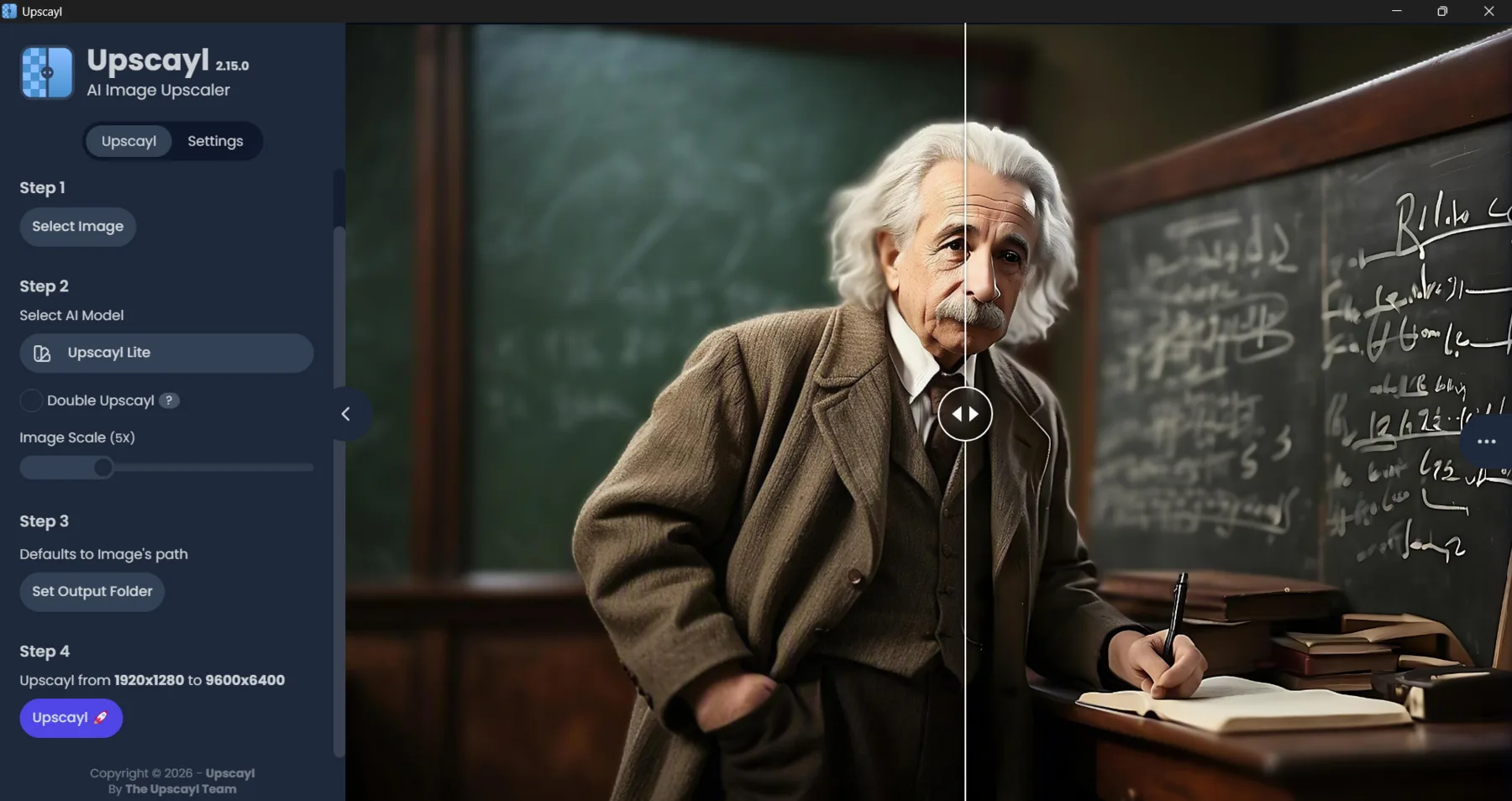
Upscayl Desktop interface processing a digital illustration

Upscayl Desktop: Free Local Art Upscaling

Choose Desktop when you prefer to process artwork on your computer. Upscayl’s current Desktop page lists local processing, Windows, macOS, and Linux versions, free and open-source access, several AI models, compatible custom models, batch upscaling, and configurable output settings.

Desktop is useful for unreleased artwork, client illustrations, larger art collections, offline work after installation, comparing multiple models locally, and artists with compatible computer hardware.

Download Upscayl Desktop
Upscayl workflow showing completed high-resolution artwork output

Upscayl Cloud: Generate, Edit and Upscale Online

Choose Cloud when you want browser-based processing or connected creative tools. The current Cloud page lists browser-based upscaling, processing without compatible local graphics hardware, AI image generation from text, natural-language image editing, background removal and style changes, additional models and formats, and access from supported computers, tablets, and phones.

Cloud plans, credits, limits, and models can change. Check current pricing before beginning a larger project.

Start Creating with Upscayl AI

STEP-BY-STEP

How to Upscale AI Art and Illustrations

Start with the best available source

Use the original generation output or highest-quality export. Avoid screenshots, social-media downloads, and repeatedly compressed files when a better version exists.

Finish the composition first

Resolve character anatomy, hands and faces, object placement, perspective, background structure, color direction, cropping, unwanted generated text, and visible generation artifacts. Upscaling a visual problem usually makes that problem larger.

Decide the final use

Record pixel dimensions, aspect ratio, file format, transparency, print size, platform limit, color profile, safe area, and bleed if printing.

Preserve the original

Create a duplicate for upscaling. Do not overwrite your only original output or editable source.

Choose a model based on visual style

Start with an illustration-oriented model for line art, anime, graphic illustration, and flat-color artwork. A photo-oriented model may suit realistic AI art, painterly scenes, or generated photography.

Use the smallest useful scale

Choose the smallest enlargement that meets the final requirement. Extreme upscaling can make generated texture and errors more visible.

Compare multiple crops

Review eyes and hands, hair, fine lines, repeating patterns, typography, signatures, gradients, surface texture, and high-contrast edges at 100%.

Test transparency

If the artwork uses a transparent background, confirm that the selected format and output preserve the alpha channel correctly.

Apply final edits

Complete color, cropping, typography, layout, and output sharpening after selecting the best upscale.

Export a clearly labeled derivative

Use clear names such as forest-guardian-original.png, forest-guardian-2x-illustration-model.png, forest-guardian-print-approved.tif, and forest-guardian-web.webp.

MODEL CHOICE

Choose the Right Model for the Art Style

Start with the visual style, then inspect the parts most likely to change.

Anime and Character Illustration upscaling example

Anime and Character Illustration

Prioritize clean facial lines, consistent eyes, stable hair strands, clothing outlines, flat-color boundaries, intentional cel shading, and accurate accessories. Watch for altered expressions, mismatched eyes, invented jewelry, or line-width changes.

Painterly AI Art upscaling example

Painterly AI Art

Prioritize brush-like texture, natural color transitions, light and shadow, atmospheric depth, and controlled edge softness. Avoid models that sharpen every brush mark into artificial surface noise.

Realistic AI Art upscaling example

Realistic AI Art

Use a photo-oriented approach when the image is intended to look photographic. Inspect skin, hair, fabric, hands, reflections, architecture, and fine background objects. Photorealistic appearance does not guarantee factual accuracy.

Line Art and Comics upscaling example

Line Art and Comics

Prioritize consistent line thickness, clean panel borders, speech-bubble edges, solid black areas, screen tones, and lettering. AI may reinterpret small text, so add final lettering manually when accuracy matters.

Watercolor and Soft Illustration upscaling example

Watercolor and Soft Illustration

Protect paper texture, transparent washes, soft pigment edges, subtle color variation, and intentional empty space. Too much sharpening can remove the softness that defines the medium.

3D Renders upscaling example

3D Renders

Inspect surface materials, reflections, polygon edges, thin geometry, depth of field, lighting, and repeating textures.

Abstract and Geometric Art upscaling example

Abstract and Geometric Art

Inspect straight lines, repeated shapes, symmetry, gradient smoothness, color boundaries, and intended visual noise.

PIXEL ART WARNING

Pixel Art Needs a Different Workflow

Traditional AI upscaling may smooth, redraw, or reinterpret individual pixels. That can damage the intentional grid and limited palette that define pixel art.

If you want to preserve the exact pixel structure, use integer scaling with nearest-neighbor interpolation. For example, 32 × 32 to 64 × 64 is 2×, and 32 × 32 to 128 × 128 is 4×. Each original pixel becomes an equal block of pixels.

Use AI upscaling only when you intentionally want a redesigned or smoothed interpretation of the pixel artwork. Label that output as a derivative rather than a pixel-perfect enlargement.

AI artwork comparison showing before and after upscaler result
AI artwork before and after comparison used for quality review.

CREATE → EDIT → UPSCALE

Generate, Edit and Upscale AI Art

Upscayl Cloud currently brings image generation, natural-language editing, and upscaling into a related browser-based workflow.

Large AI artwork before and after Upscayl enhancement after reviewed Upscayl output
Large AI artwork before and after Upscayl enhancement before upscaling
BeforeAfter
Drag left or right to compare the original large AI artwork with the reviewed high-resolution output.

Generate several concepts

Use a prompt that defines subject, environment, composition, lighting, color palette, medium or style, aspect ratio, and important exclusions.

Choose the strongest composition

Do not upscale every generated option. Select the version with the best structure, subject placement, and visual direction.

Correct obvious errors

Resolve unwanted objects, background problems, anatomy, or style inconsistencies before enlargement.

Upscale the approved image

Use a model suited to the artwork’s visual characteristics.

Complete the final design

Add exact typography, logos, borders, signatures, and production elements using appropriate design tools.

REAL USE CASES

Upscale Artwork for Real Creative Uses

Portfolio and Art Websites digital art upscaling use case

Portfolio and Art Websites

Create larger portfolio images while balancing display quality and page speed. Keep a larger master and deliver responsive web versions.

Wallpapers digital art upscaling use case

Wallpapers

Match the output to the target display’s aspect ratio. Do not stretch artwork to fill a different shape.

Prints and Posters digital art upscaling use case

Prints and Posters

Calculate required pixels from final print size and target PPI. Obtain printer requirements before processing.

Book and Album Covers digital art upscaling use case

Book and Album Covers

Preserve safe areas for titles, author names, logos, and trim.

Merchandise digital art upscaling use case

Merchandise

Prepare art for shirts, prints, stickers, cases, or other products according to supplier requirements.

Comics and Graphic Novels digital art upscaling use case

Comics and Graphic Novels

Protect panel lines, screen tones, speech bubbles, and character continuity. Add exact text after upscaling.

Game and App Assets digital art upscaling use case

Game and App Assets

Confirm required texture dimensions and performance budget because larger assets use more storage and memory.

Social Media Campaigns digital art upscaling use case

Social Media Campaigns

Create platform-specific crops from a larger approved version rather than stretching one small output.

PRINT PREP

Prepare AI Art and Illustrations for Printing

Use this formula to estimate required pixels:

Required pixels = Print size in inches × Target PPI
12 × 300 = 3600
18 × 300 = 5400

For a 12 × 18-inch print at 300 PPI, the working file therefore needs approximately 3,600 × 5,400 pixels before allowing for bleed.

A 300 PPI target is common for detailed, close-viewed prints, but large-format work may use a lower effective PPI. Ask the printer for final size, required PPI, bleed, safe area, accepted format, color profile, RGB or CMYK workflow, transparency requirements, and maximum file size. Make a physical proof before approving an important print or merchandise order.

Prepare Artwork for Print
Digital illustration prepared and proofed for printing in an interior space
Digital illustration prepared and proofed for printing.

BATCH WORKFLOW

Batch Upscale an Art Collection

Batch processing is useful when artwork shares similar dimensions, the same visual style, a common model, the same output destination, a consistent aspect ratio, and similar line and texture characteristics.

A safer batch workflow is to group artwork by style, select representative examples, test the intended model and scale, review lines, gradients, patterns, faces, and text, confirm transparency and format, process the batch, inspect samples across the full set, review feature artwork individually, create destination-specific exports, and preserve the original collection.

Do not apply one model to a mixed folder of anime, realistic AI art, pixel art, logos, and watercolor illustrations.

Batch Upscale Artwork
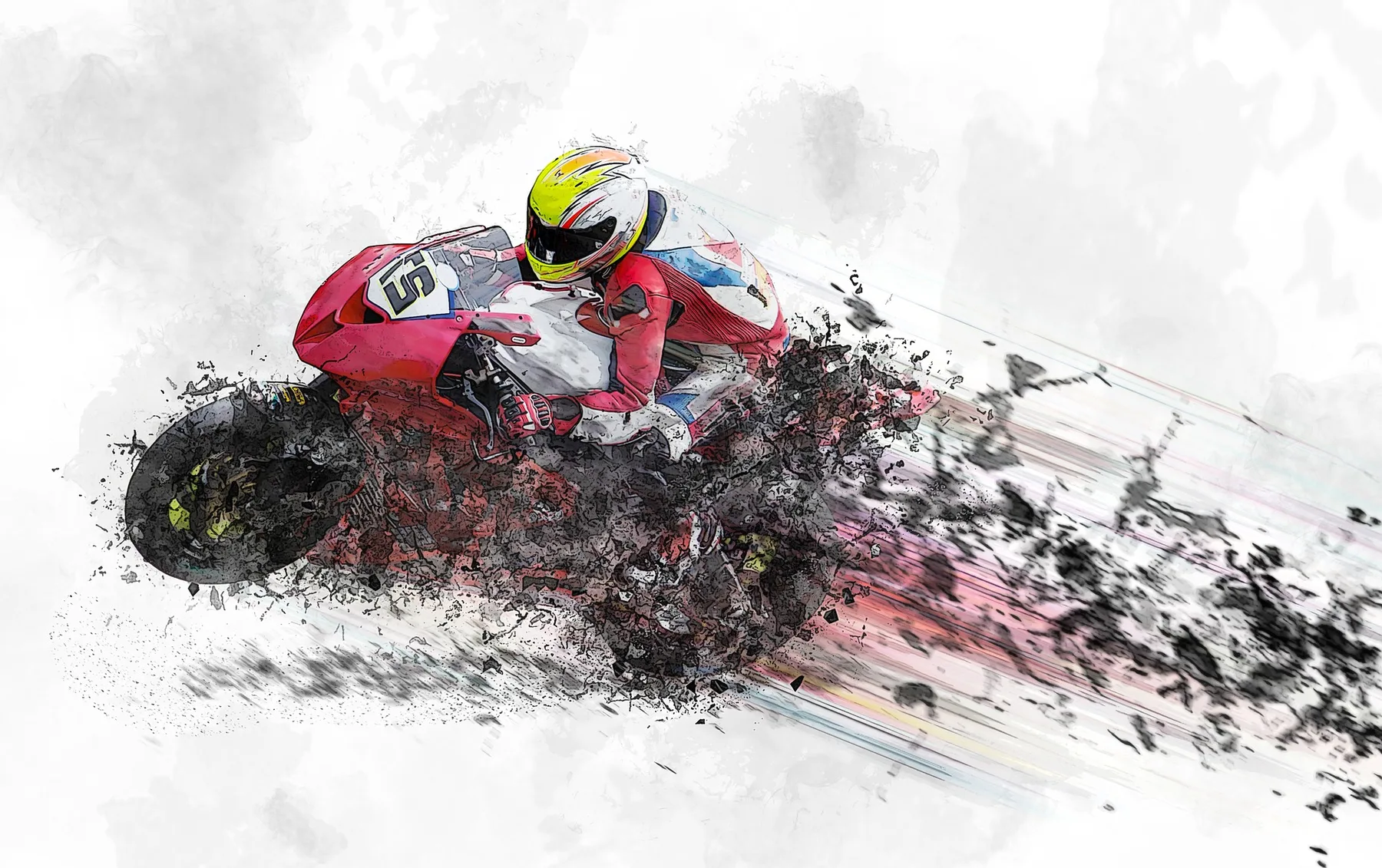
Batch AI art upscaling workflow using a representative action illustration
Batch AI art upscaling workflow using a representative test image.

QUALITY REVIEW

What to Check Before You Export

AreaReview requirement
SilhouettePreserve the intended outer shape
LinesCheck thickness, continuity and unwanted outlines
FacesInspect eyes, mouth, hair and expression
HandsCheck fingers, pose and object interaction
PatternsLook for incorrect repetition or distortion
GradientsCheck banding and abrupt color transitions
TexturePreserve intended brush, paper or surface detail
TextVerify every letter and number manually
SignatureConfirm it has not changed
TransparencyCheck edges and alpha-channel behavior
ColorCompare with the approved source
CompositionConfirm the crop and aspect ratio
File dimensionsMatch the final platform or printer
File sizeOptimize the delivery copy

EVIDENCE-FIRST PAGE EXPERIENCE

First-Hand Artwork Tests This Page Should Publish

Use original artwork or files with documented permission. Publish strong outputs and weak outputs so users can judge the workflow honestly.

Recommended test set

  • Anime character illustration.
  • Painterly fantasy scene.
  • Realistic AI-generated portrait.
  • Black-and-white line art.
  • Watercolor-style illustration.
  • 3D-rendered environment.
  • Geometric poster.
  • Pixel-art example processed with both nearest-neighbor and AI.

Include weak outputs

  • Line thickness becomes inconsistent.
  • Character eyes change.
  • Hands develop new errors.
  • Watercolor texture becomes overly sharp.
  • A signature changes.
  • Small text becomes incorrect.
  • Patterns repeat unnaturally.
  • Pixel art loses its grid.
Test detailRequired information
SourceOriginal illustration or generated output
Creation methodHuman, AI-assisted, AI-generated or mixed
Source dimensionsExact pixel dimensions
Source formatPNG, JPEG, TIFF or other
Final useWeb, print, wallpaper or merchandise
Upscayl versionTested release
ModelExact model used
ScaleEnlargement setting
Processing routeDesktop or Cloud
Additional editingPrompt editing, crop or manual corrections
Output dimensionsExact pixel dimensions
Processing timeMeasured duration
Test dateFull date
FindingsVisible strengths and limitations

RIGHTS AND PRIVACY

Creator Rights, Attribution and Responsible Use

Upscaling artwork does not give the user ownership or commercial rights to it. Before processing or publishing artwork, use work you created or are authorized to modify, check licenses of generated assets, models, stock elements, fonts, and reference images, respect artist attribution requirements, do not remove signatures or watermarks without authorization, do not present another artist’s work as your own, confirm client permission before Cloud processing, review platform and print-provider rules, and keep records of source files, prompts, edits, and licenses where appropriate.

For legal questions about ownership or commercial rights, consult a qualified professional. Rights can depend on how the work was created, how much human authorship it contains, source materials, licenses, and intended use.

WHY UPSCAYL

Why Use Upscayl for AI Art and Illustrations?

Choose the workflow that fits the artwork, device, privacy needs, and final destination.

01

Upscayl Desktop

Free, open-source access with local image processing on Windows, macOS, and Linux. Desktop supports multiple models, batch processing, compatible custom models, and configurable output options.

Download Upscayl Desktop
02

Upscayl Cloud

Browser-based upscaling without compatible local graphics hardware. Cloud also provides AI image generation, natural-language editing, additional models and formats, and access across supported devices.

Explore Upscayl Cloud
03

Choose by Workflow

The right route depends on the artwork’s sensitivity, visual style, source resolution, available local hardware, project size, and final use.

Compare Desktop and Cloud

PRACTICAL ANSWERS

Frequently Asked Questions

Can Upscayl upscale AI art?

Yes. Upscayl Desktop and Cloud can create larger raster versions of suitable AI-generated artwork.

Can I enlarge digital art without making it blurry?

AI upscaling may create a cleaner-looking enlargement than simple stretching. Results still depend on the source, model, scale, and visual style.

Is Upscayl suitable for illustrations?

Yes. Test an illustration-oriented model and inspect lines, gradients, flat colors, patterns, text, and signatures before export.

Should I upscale vector art?

If the original vector file is available, export it directly at the required size. AI upscaling is more relevant when only a raster version exists.

Is Upscayl good for pixel art?

Use nearest-neighbor integer scaling when exact pixel preservation matters. AI upscaling is appropriate only when you want a reinterpreted or smoothed derivative.

Should I fix AI-generation errors before upscaling?

Yes. Correct anatomy, hands, faces, composition, text, and unwanted objects before enlargement.

Which model should I use for AI art?

Choose by visual style. Illustration models may suit anime and line art, while photo-oriented models may better suit photorealistic generations. Test the actual artwork.

Can I upscale artwork for printing?

Yes. Calculate the required pixels from the print dimensions and target PPI, then make a physical proof.

Can I upscale artwork for merchandise?

Yes, when you have the necessary rights. Follow the supplier’s dimensions, bleed, color, transparency, and file-format requirements.

Does upscaling preserve transparent backgrounds?

That depends on the input, selected output format, and product workflow. Test the alpha channel before processing an entire collection.

Can I batch upscale illustrations?

Yes. Group work by style, dimensions, model requirements, and final destination before processing.

Is Upscayl Desktop free?

The official Desktop page currently describes it as free and open source. Check the current download page before installation.

Can I generate and upscale art online?

Upscayl Cloud currently lists AI image generation, editing, and upscaling in its browser-based product. Check current feature access and pricing.

Does upscaling give me copyright ownership?

No. Upscaling does not grant ownership or usage rights in the source artwork.

Are Cloud uploads used to train AI models?

Upscayl’s current Privacy Policy states that uploaded images are not used to train AI models. Review the complete policy for current processing and retention details.

READY FOR THE NEXT CANVAS

Give Your Artwork the Canvas Size Its Next Use Requires

Start with the best source. Choose a model that respects the art style. Use the smallest useful scale. Then inspect every line, texture, pattern, color, and signature.